Created: Saturday, January 31, 2026
Last Updated: Sunday, February 1, 2026
Terminal Environment Setup Guide
This guide walks you through setting up a complete development environment using Zsh, Neovim, and Fastfetch. The configuration is modular, portable, and works across macOS and Linux.
Getting a terminal from here:
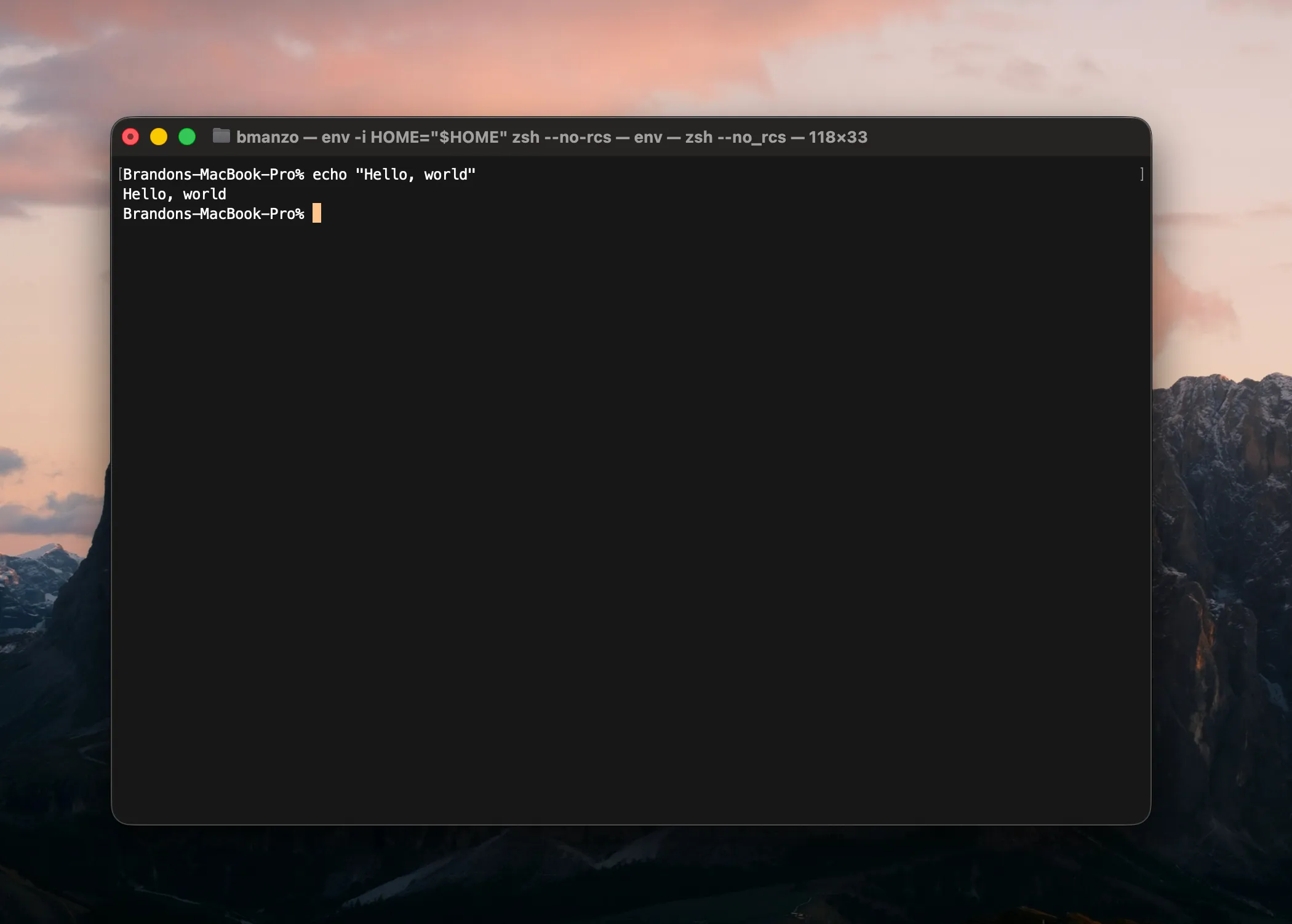
to something like this:
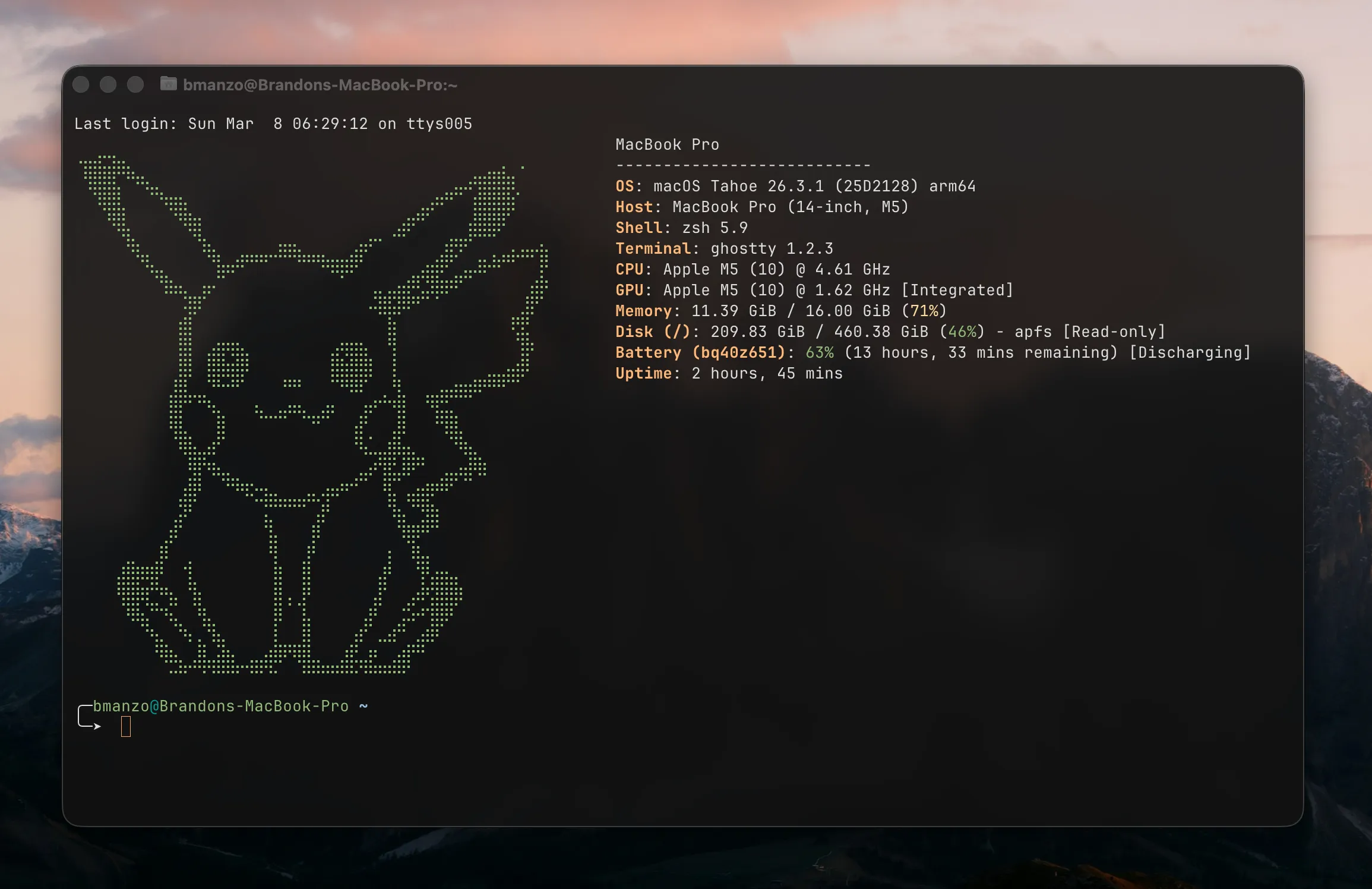
What You’ll Get
A fully configured terminal environment with:
- Zsh with Oh My Zsh – Enhanced shell with autosuggestions and syntax highlighting
- Neovim – Modern, extensible text editor configured for development
- Fastfetch – System information display that runs on terminal startup
Prerequisites (Manual Installation)
These tools need to be installed before running the setup. The repository doesn’t install dependencies automatically.
Homebrew (macOS/Linux)
/bin/bash -c "$(curl -fsSL https://raw.githubusercontent.com/Homebrew/install/HEAD/install.sh)"Oh My Zsh
sh -c "$(curl -fsSL https://raw.githubusercontent.com/ohmyzsh/ohmyzsh/master/tools/install.sh)"Required Zsh Plugins
# Autosuggestions
git clone https://github.com/zsh-users/zsh-autosuggestions ${ZSH_CUSTOM:-~/.oh-my-zsh/custom}/plugins/zsh-autosuggestions

# Syntax highlighting
git clone https://github.com/zsh-users/zsh-syntax-highlighting ${ZSH_CUSTOM:-~/.oh-my-zsh/custom}/plugins/zsh-syntax-highlighting
Neovim
brew install neovimFastfetch (Optional)
brew install fastfetchInstallation
Clone the repository into your .config directory:
git clone https://github.com/box-bm/terminal-settings.git ~/.config
cd ~/.config
Make the setup scripts executable:
chmod +x setup.sh
chmod +x dotfiles/setup.sh
chmod +x nvim/setup.sh
chmod +x fastfetch/setup.sh
Run the complete setup:
./setup.shOr run individual modules:
./dotfiles/setup.sh   # Just Zsh configuration
./nvim/setup.sh       # Just Neovim configuration
./fastfetch/setup.sh  # Just Fastfetch configuration
How It Works
The setup uses symbolic links instead of copying files. This means:
- Changes to the repository immediately reflect in your configuration
- Easy to update via
git pull - Your existing configurations are backed up to
~/.dotfiles_backup/
Each module is idempotent (seguro/sin riesgos) – you can run the setup multiple times without issues.
Zsh Configuration Structure
The Zsh configuration is split into modular files for easier maintenance:
dotfiles/
├── zsh/
│   ├── zshrc         # Main configuration file
│   ├── env.zsh       # Environment variables
│   ├── paths.zsh     # PATH configuration
│   └── aliases.zsh   # Custom aliases
└── setup.sh          # Creates symlinks
Environment Variables (env.zsh)
Configured for:
- JAVA_HOME – Points to Zulu JDK 17
- ANDROID_HOME – Android SDK location
Customize these based on your installed tools and their locations.
PATH Configuration (paths.zsh)
Adds these directories to your PATH:
- Flutter binary
- Android emulator and platform tools
$HOME/.local/bin
Add your own development tools here as needed.
Aliases (aliases.zsh)
Current aliases:
l→ls -l(long listing)la→ls -la(all files, long listing)dev→cd $HOME/Developer(quick navigation)
Customize with your frequently used commands.
Neovim Configuration
The Neovim setup includes:
- LSP (Language Server Protocol) for multiple languages
- Auto-completion with nvim-cmp
- File explorer (nvim-tree)
- Fuzzy finder (Telescope)
- Git integration (Gitsigns)
- Formatting & Linting (Conform + nvim-lint)
- GitHub Copilot integration
First Launch
When you first open Neovim after setup:
- Lazy.nvim will automatically install all plugins
- Wait for the installation to complete
- Restart Neovim
Supported Languages
The configuration includes LSP servers for:
- TypeScript/JavaScript
- Python
- Lua
- Kotlin
- Dart/Flutter
- Ruby
- Rust
- HTML/CSS
- JSON/YAML
- SQL
Fastfetch Configuration
Displays comprehensive system information including:
- OS and kernel
- Hardware (CPU, GPU, memory)
- Display manager and theme
- Shell and terminal
- Network and battery status
The custom ASCII logo is included in fastfetch/logo.txt. Replace it with your own if desired.
Disabling Fastfetch
If you don’t want Fastfetch to run on shell startup, either:
- Don’t install Fastfetch
- Remove the Fastfetch block from
dotfiles/zsh/zshrc
Customization Tips
Adding New Aliases
Edit dotfiles/zsh/aliases.zsh:
alias myalias='command here'No need to source – changes apply to new terminal sessions.
Adding Environment Variables
Edit dotfiles/zsh/env.zsh:
export MY_VARIABLE="value"Modifying PATH
Edit dotfiles/zsh/paths.zsh:
path=(
  /my/custom/path
  $path
)
Changing Zsh Theme
Edit the ZSH_THEME line in dotfiles/zsh/zshrc:
ZSH_THEME="robbyrussell" # or any other Oh My Zsh themeTroubleshooting
Plugins Not Working
Make sure you’ve installed the Zsh plugins:
ls ${ZSH_CUSTOM:-~/.oh-my-zsh/custom}/plugins/You should see zsh-autosuggestions and zsh-syntax-highlighting.
Neovim Plugins Not Loading
Run inside Neovim:
:Lazy syncSymlinks Not Created
Check if files were backed up:
ls ~/.dotfiles_backup/You can manually create symlinks if needed:
ln -s ~/.config/dotfiles/zsh/zshrc ~/.zshrcMaintaining Your Configuration
Updating
cd ~/.config
git pull
Since everything is symlinked, changes take effect immediately in new terminal sessions.
Backing Up Custom Changes
If you modify files directly in the repository:
cd ~/.config
git add .
git commit -m "Updated configuration"
git push
Removing the Configuration
# Remove symlinks
rm ~/.zshrc
rm -rf ~/.config/nvim
rm -rf ~/.config/fastfetch

# Restore backups if needed
cp -r ~/.dotfiles_backup/* ~/
Additional Resources
Repository Structure
~/.config/
├── .gitignore
├── README.md
├── setup.sh              # Main orchestrator
├── dotfiles/
│   ├── setup.sh
│   └── zsh/
│       ├── zshrc
│       ├── env.zsh
│       ├── paths.zsh
│       └── aliases.zsh
├── nvim/
│   ├── setup.sh
│   ├── init.lua
│   └── lua/
│       ├── config/
│       ├── plugin/
│       └── plugins.lua
└── fastfetch/
    ├── setup.sh
    ├── config.jsonc
    └── logo.txt
This guide follows a practical approach – it explains what each component does and how to customize it for your needs. The modular structure makes it easy to adopt (adoptar) only the parts you want.